
Prepare your property in Hostivio
Sign in as the owner or a manager and select the right property. Also have your Booking.com extranet login ready, and your phone for login verification.
- Check your rooms, capacities, existing reservations and closed dates.
- Add the address and a base price per night for each room. A property without rooms is connected as a whole property.
- Make sure your plan or add-on includes the channel manager.
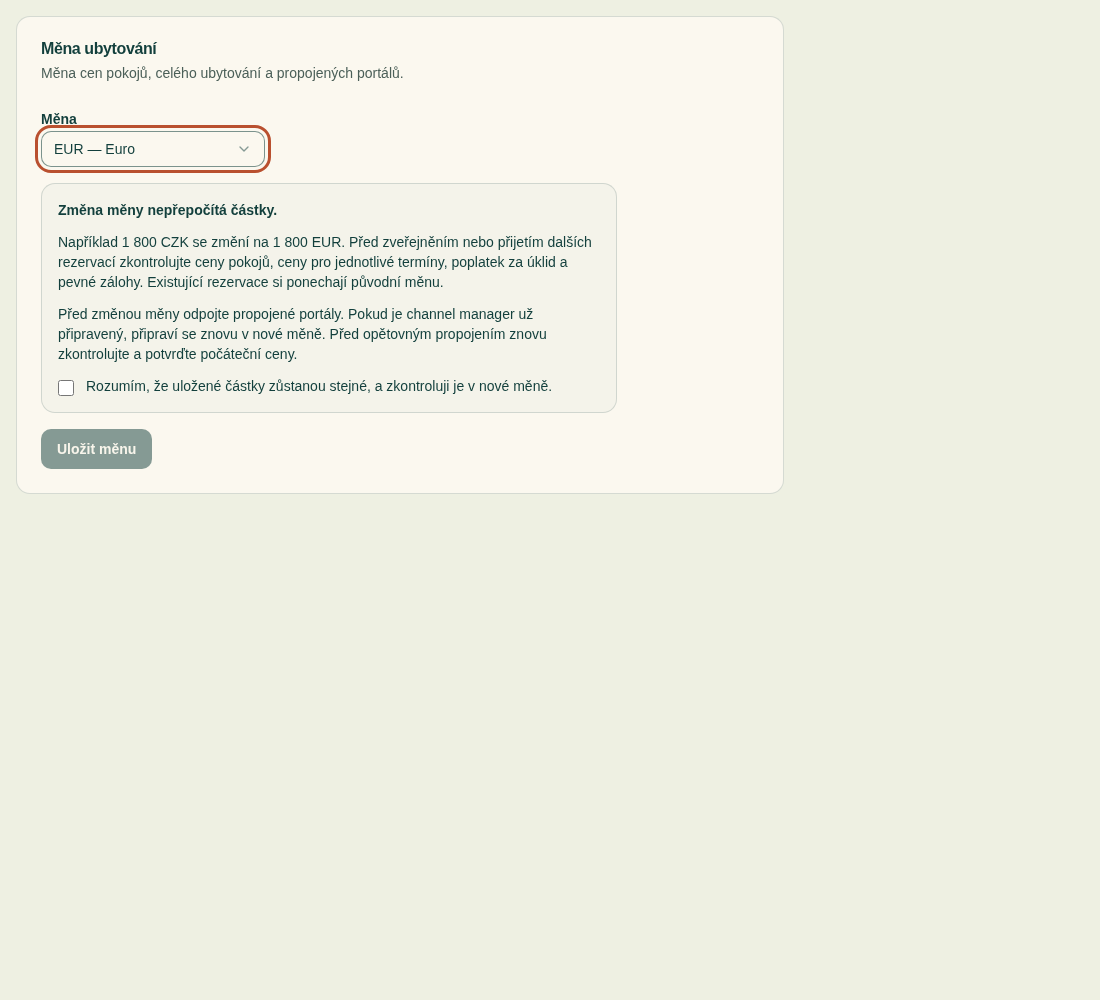
Open Channel manager, complete the “Before you start” list and choose Activate channel manager. When everything is ready, click Connect next to Booking.com.
Confirm your prices before connecting
If the channel manager does not have starting prices ready yet, you will see the Prices for Booking.com screen. Check the base price of each room. Add a missing price with Set price and correct an existing one with Edit.
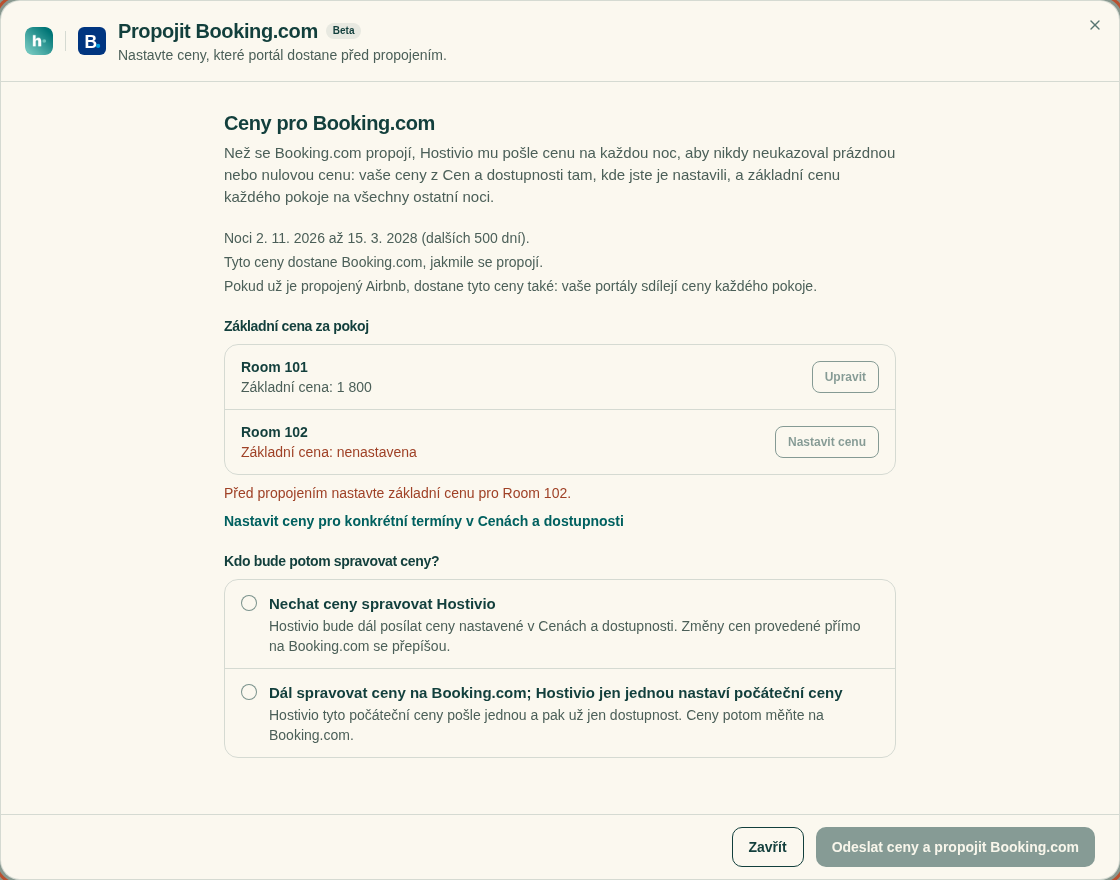
Who manages prices after that?
Let Hostivio manage prices
Hostivio keeps sending the prices from Rates & availability. Changes made directly on Booking.com may be overwritten.
Keep managing prices in Booking.com
Hostivio sends the starting prices once, then availability only. Change later prices in the extranet.
If the check asks you to agree to sending the same price to all Booking.com rate plans of each room, confirm it only if that is what you intend. Choose Send prices and connect Booking.com and wait for the guide to continue.
If Airbnb is already connected, the same prices may be sent there too. Go through all the destinations shown.
Allow the connection with Channex.io
Sign in at account.booking.com (new tab) and open the specific property. If you see the group overview, select the right property first.
Open Connectivity provider
In the extranet, open Account → Connectivity provider.
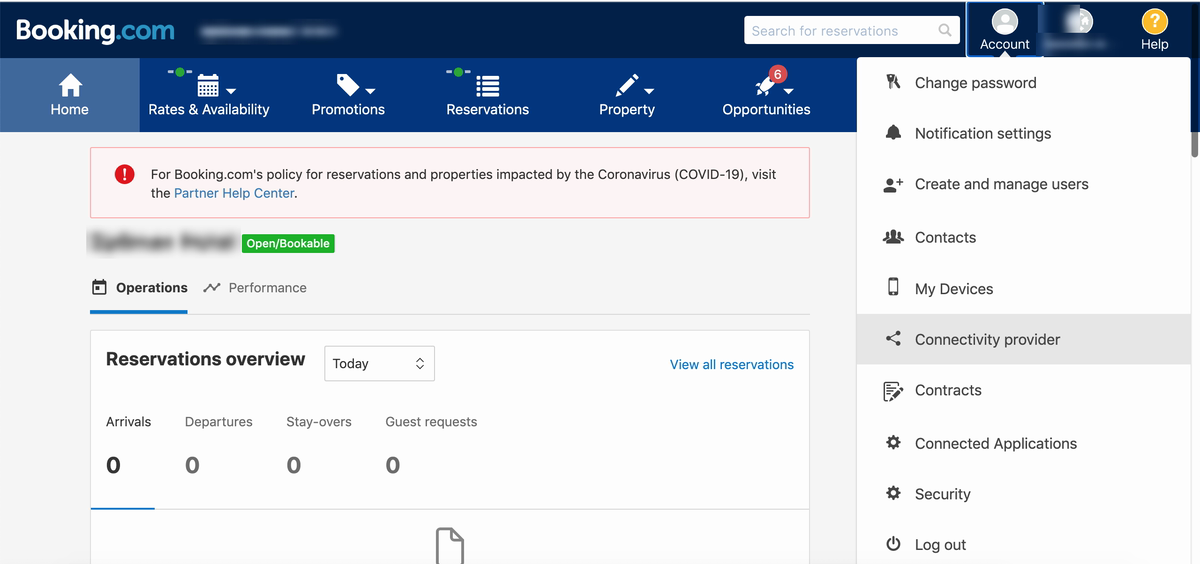
Booking.com extranet · step 1. Older English interface; names and layout may differ. Click the image to open it. Start searching for a provider
Click Search. If you already use another channel manager, first check how to switch and the status of your existing connection.
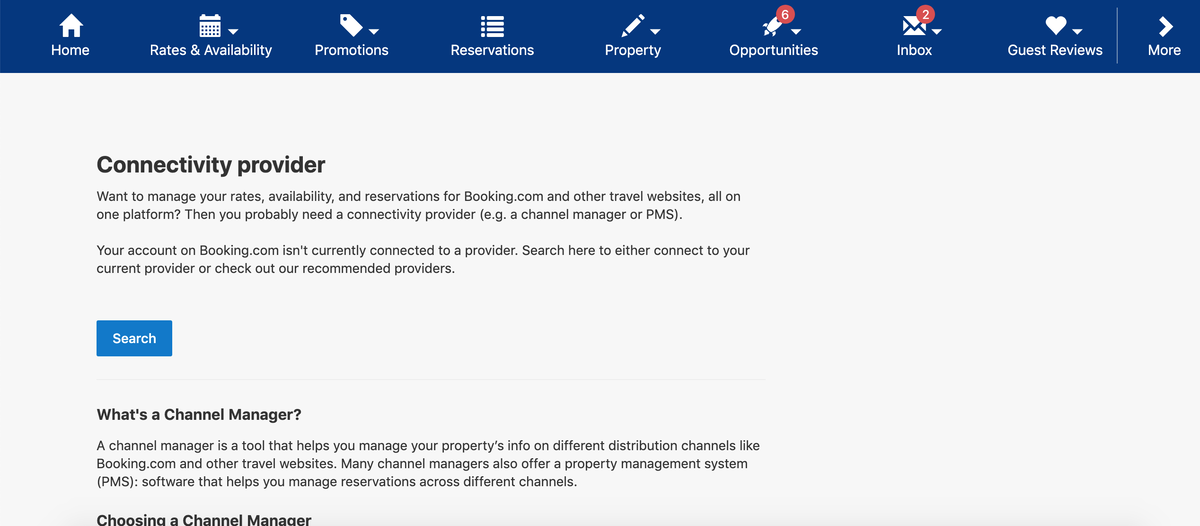
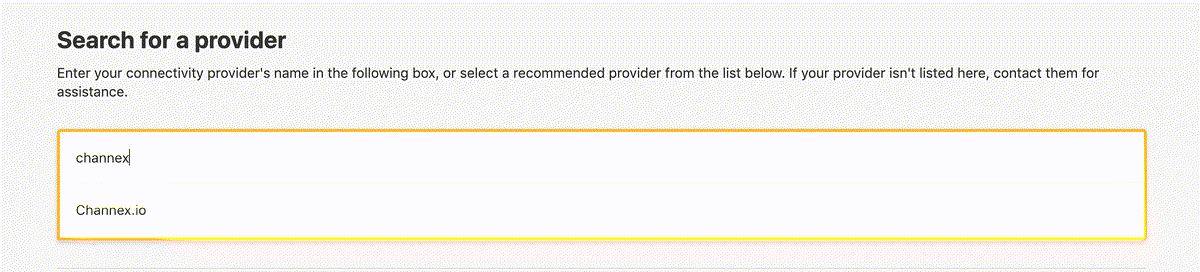
Booking.com extranet · step 2. Older English interface; names and layout may differ. Click the image to open it. Find Channex.io
Type the full name Channex or Channex.io and choose Channex.io from the list. This is the connectivity provider through which Hostivio makes the connection.
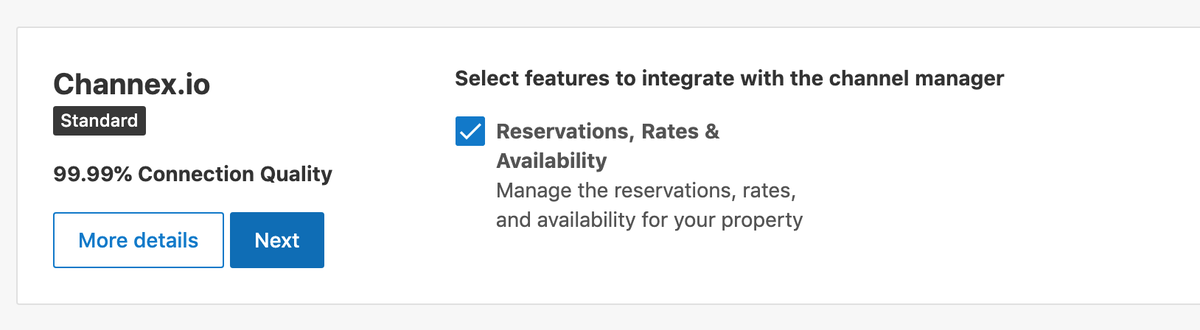
Booking.com extranet · step 3. Older English interface; names and layout may differ. Click the image to open it. Check the connection features
Keep reservations, rates and availability selected and continue with Next.
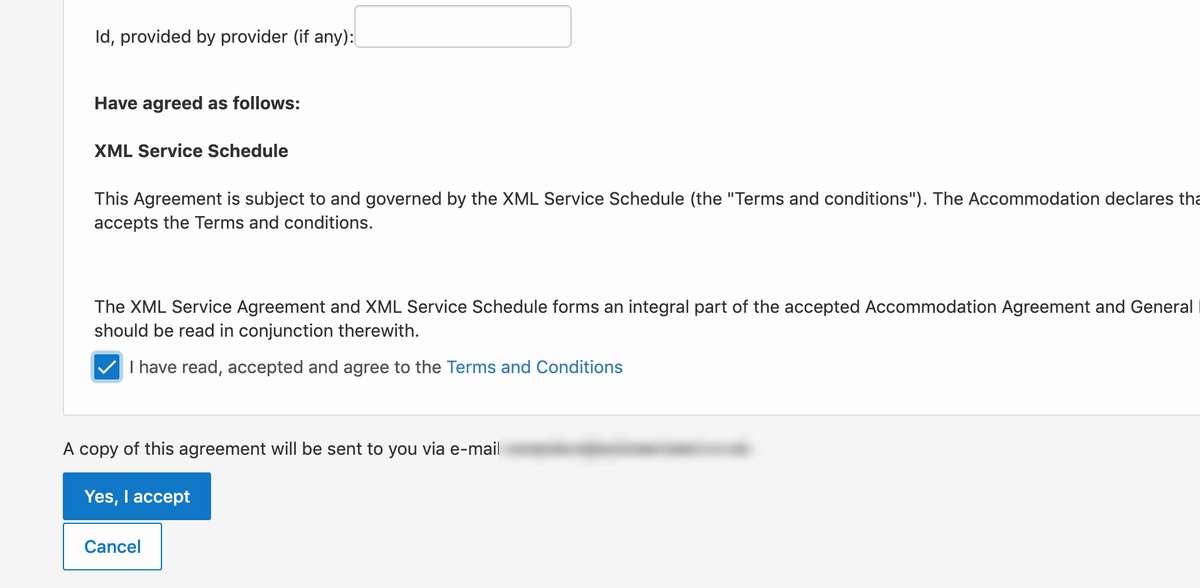
Booking.com extranet · step 4. Older English interface; names and layout may differ. Click the image to open it. Accept the terms
Read the XML service terms, tick the box to agree and click Yes, I accept. Then go back to the setup guide in Hostivio.
Booking.com extranet · step 5. Older English interface; names and layout may differ. Click the image to open it.
Enter the Hotel ID and map your rooms
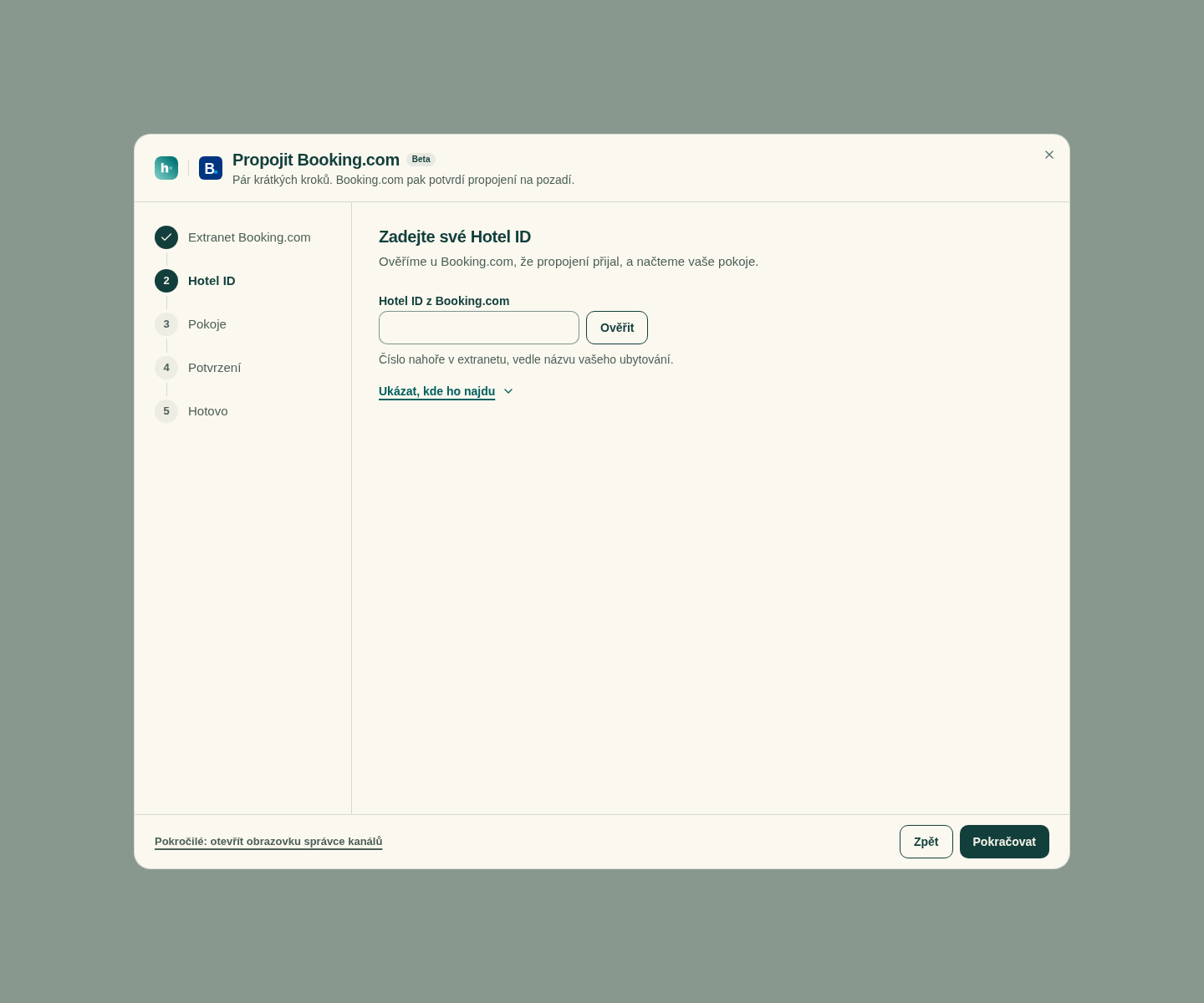
You will find the numeric Hotel ID at the top of the extranet, next to the property name. Go back to Hostivio, paste it into the Booking.com Hotel ID field and click Check.

Check every mapping
For each Booking.com room, choose the matching room in Hostivio. Check the pre-filled suggestions against your actual property and capacity. Each Hostivio room can be mapped to only one Booking.com room. If you have no rooms in Hostivio, map the Booking.com room to the Whole property.
Click Connect Booking.com. Confirmation usually takes a few minutes, sometimes several hours. You can close the window; you will find the progress on the Channel manager page.
Waiting for Booking.com Setting up Live
Check that everything works
Closing the guide does not by itself confirm the connection. In the overview, check that the status is Live and go through this list:
- All rooms you want to sync are mapped correctly.
- Existing reservations have been imported into the calendar. The import can take a few minutes; before adding a reservation by hand, check that it is not already in Hostivio.
- Availability and closed nights for the same room and date match in Hostivio and on Booking.com.
- You have checked prices, derived rate plans and minimum length of stay in the extranet.
- You know whether the active mode sends availability, prices or both.
Save, review, and only then send
If you want to keep sending prices from Hostivio, go to Channel manager → What Hostivio sends, choose Availability and prices and then Start preparing. Choosing the mode does not send any prices by itself.
- In Rates & availability, change the values and click Save changes.
- Open Review & publish. Set From night and Through night (inclusive).
- Choose whether to include stay rules. If you leave them off, the rules set on the channels stay as they are.
- Click Review these dates.
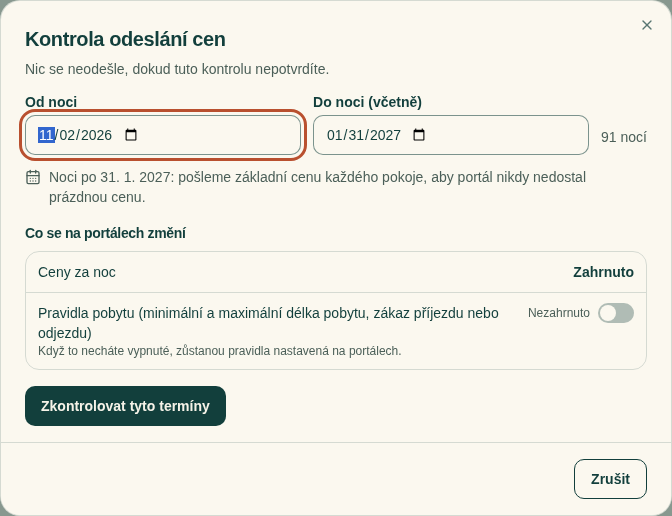
Check every destination and give your consent
Under Destinations, go through each room, price range, channel and rate plan. For a room with several rate plans on Booking.com, choose Same price for every rate or Leave this room out. Leaving a room out applies to that update on all channels.
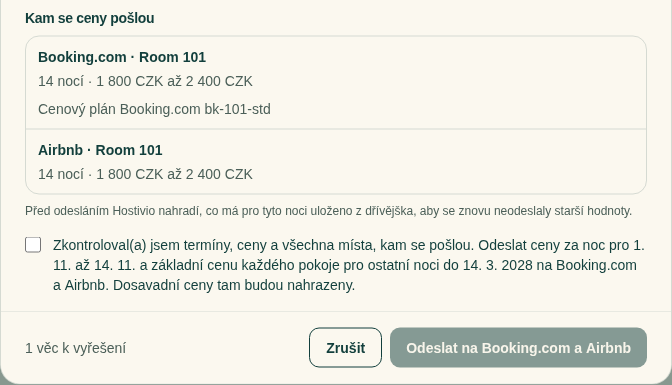
Tick the box to confirm you have reviewed the dates, prices and every destination. Then click Publish to Booking.com, or the button listing all destination channels.
Want to make arrival easier for your guests too? Read the guide to setting up TTLock electronic locks.
When something does not work
Booking.com has not confirmed the connection yet
Check the Hotel ID and that you finished accepting the terms in the extranet. Wait a few minutes and click Check again. If the guide offers to continue without rooms, check the automatic mapping suggestion after confirmation.
The connection needs attention or a room is missing
Open the connection progress and follow the specific error. Check the room mapping and that the rate plans exist on Booking.com. If the currencies differ, first make the property currency and the channel currency the same.
Hostivio shows “Please check your prices”
This is a follow-up comparison of prices sent earlier. Booking.com prices cannot be loaded automatically: compare the table with the extranet, correct any differences and choose Review & publish. In the final dialog, confirm that you have compared the prices and want to send them to Booking.com.
Need help or have an idea for an improvement? Write to support in Hostivio. Include the property name, Hotel ID, the step and time of the problem, and if useful a screenshot without passwords or guests' personal data.
The extranet steps are also based on the official Channex guide (new tab). The interface may change over time.