
Before you connect your locks
In Hostivio, select the right property and open Settings → Smart locks (in Czech: Nastavení → Elektronické zámky). The feature needs the Pro plan or higher. The property owner connects the account, confirms the physical tests and turns the locks on. A manager can prepare the times and the device assignment.
- First make sure the lock or key safe is added and working in the TTLock app.
- Have the login details ready for the TTLock account the devices are registered under.
- Connect the TTLock gateway to Wi-Fi and to the same account. It must be within range of the device; a phone does not replace the gateway.
- For remote unlocking, turn on Remote Unlock in TTLock.
- Arrange for someone to be right at the door, and check the backup key and the contact for guests.
Connect TTLock
In the TTLock connection step (Připojení TTLock), enter the username and password of your TTLock account, read the consent to the connection and click Connect TTLock (Připojit TTLock). Make the connection as the owner.
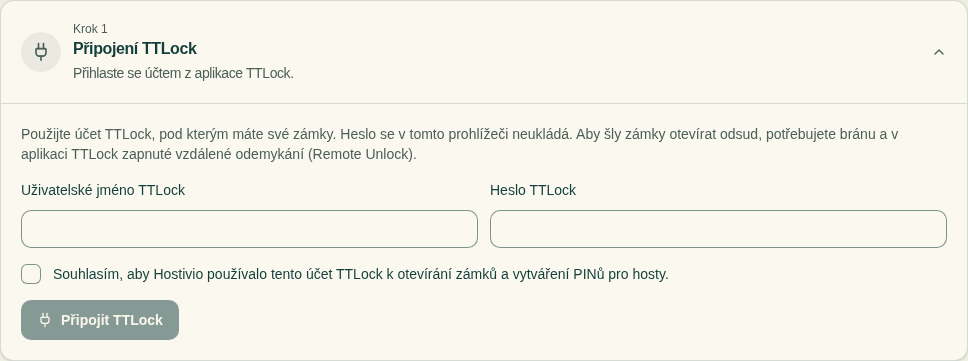
Once connected, check that the devices you expect have loaded. If any are missing, check in TTLock that you used the right account and that the lock and gateway are assigned to it. Do not connect another property's account by mistake.
Set how long access is valid and assign the locks
Save the arrival and departure times
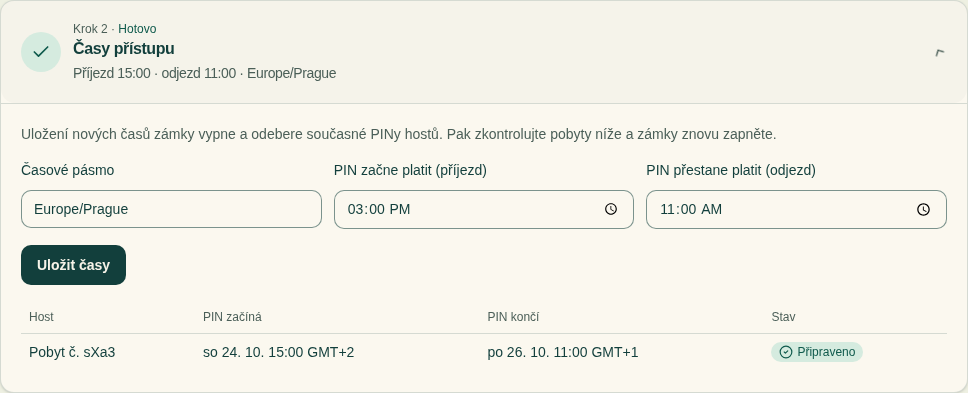
In the Access times step (Časy přístupu), check the property's time zone, for example Europe/Prague. Set PIN starts working (arrival) (PIN začne platit (příjezd)) and PIN stops working (departure) (PIN přestane platit (odjezd)). Confirm with Save times (Uložit časy).
Add each device according to the actual door
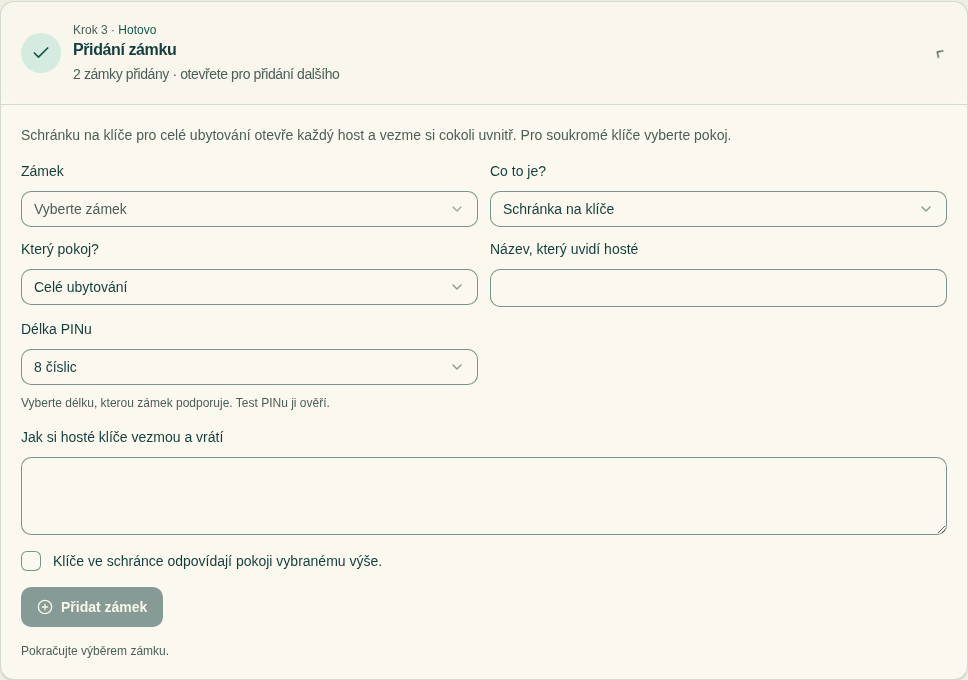
- In the Add a lock step (Přidání zámku), select a device loaded from TTLock.
- In the What is it? field (Co to je?), choose shared entrance, room door or key safe.
- Select the matching room or the whole property. A room door must belong to the right room.
- Fill in Name guests will see (Název, který uvidí hosté), for example “Main entrance from the street”. For a device with a PIN, choose a supported length offered by the form.
- For a key safe, describe how guests take and return the keys, and confirm the keys are assigned correctly. Click Add lock (Přidat zámek).
Test unlocking and the whole PIN life cycle
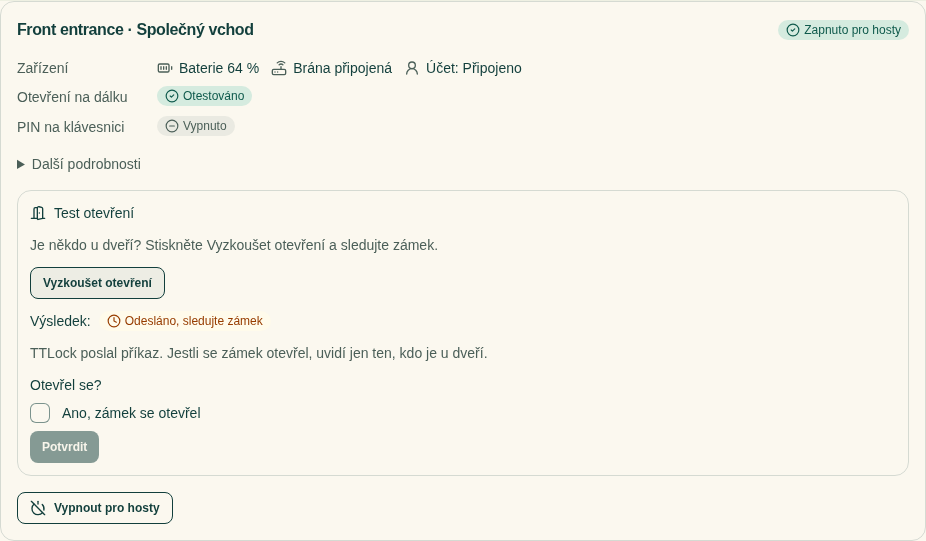
Open Test and turn on locks (Test a zapnutí zámků). Test right at the specific door, with a backup way in. A command accepted by TTLock does not yet confirm that the door physically opened.
Remote unlock test
Click Try unlocking (Vyzkoušet otevření), watch the lock and actually try to open the door. Only after a successful attempt, tick Yes, the lock opened (Ano, zámek se otevřel) and click Confirm (Potvrdit).
Time-limited PIN test
For a device with a keypad, choose Start PIN test (Spustit test PINu). Follow the times and instructions on the screen; the test has a limited time window.
- Before the start of validity: enter the test PIN. The lock must not open.
- During validity: the PIN must open the lock. Unplug the gateway's power and try the PIN again. Unlocking must also work without the gateway.
- Removal: plug the gateway back in and wait until Hostivio removes the test PIN.
- After removal: the same PIN must no longer open the lock. Confirm only the checks you actually carried out.
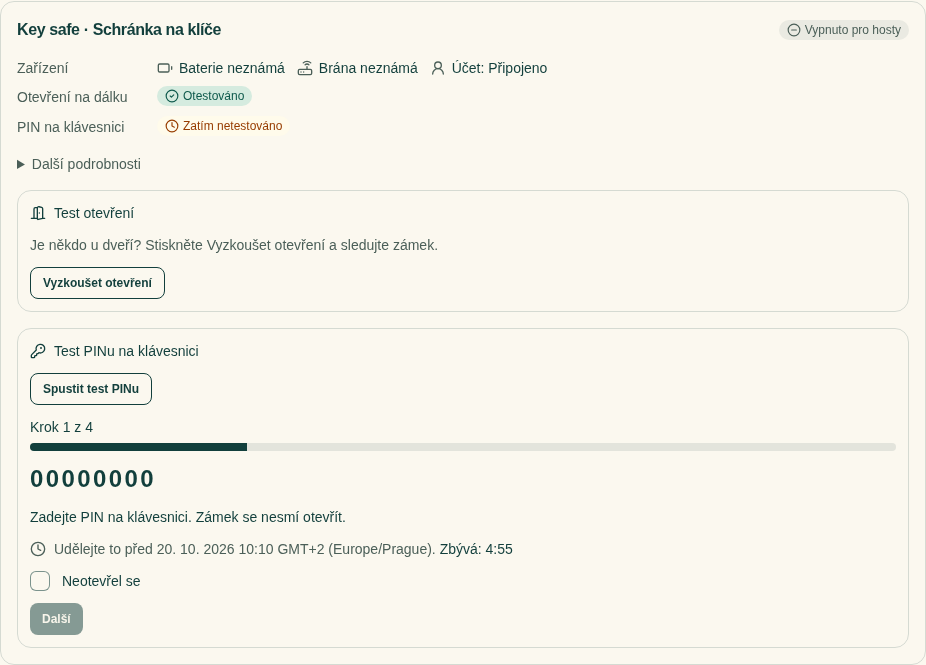
If the test fails or you miss the time window, do not treat the device as ready. First check that the test PIN has been removed, fix the cause and then repeat the test.
Turn on only locks that passed the tests
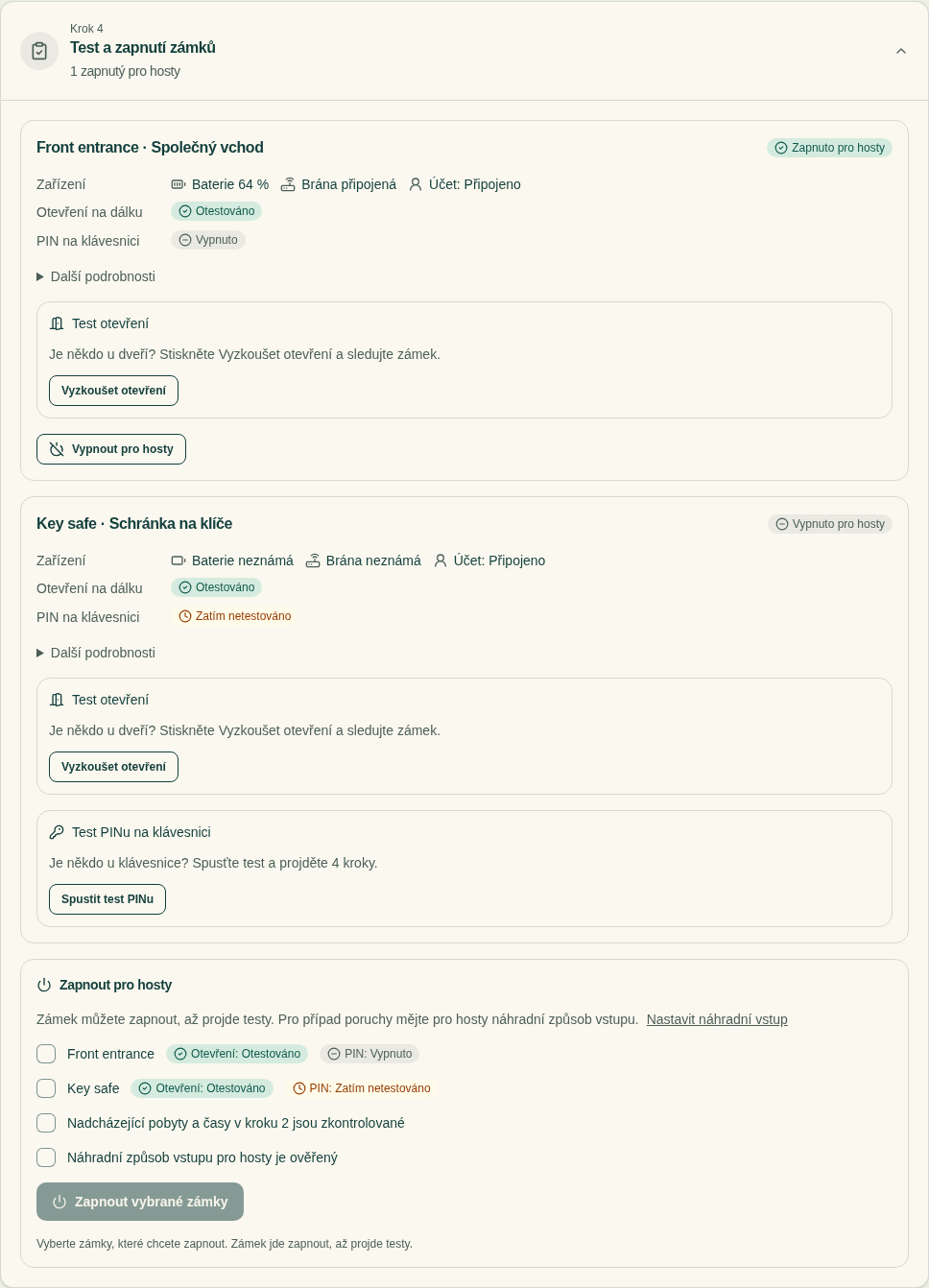
As the owner, select the devices that successfully passed the required tests. Check upcoming bookings, the assigned rooms and the times in step 2.
- Confirm Upcoming stays and the times in step 2 have been checked (Nadcházející pobyty a časy v kroku 2 jsou zkontrolované).
- Confirm A backup way in for guests has been checked (Náhradní způsob vstupu pro hosty je ověřený).
- For a shared key safe, also check and confirm what is inside it.
Click Turn on selected locks (Zapnout vybrané zámky) and check the resulting status. If the app reports a missing test, a gateway problem or a restriction on guest access, deal with that specific reason first. Turning a device on does not replace confirming access for individual bookings.
Confirm access for a specific booking
Open the booking detail and the Door access card (Přístup do dveří). First give the guest their current access code for the guest portal and check the exact date and time of access. Tick The guest has their current code and these times are right (Host dostal svůj aktuální kód a tyto časy sedí) and click Confirm guest access (Potvrdit přístup hosta).
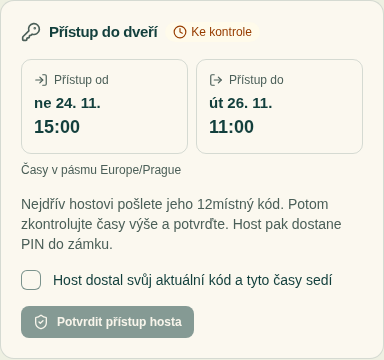
PINs are prepared no earlier than 30 days before arrival. For a booking with arrival more than 30 days away, waiting for the PIN is therefore normal. After confirming, watch the actual preparation status; for a PIN, wait for the status On the lock (Na zámku). You can check it with Show PIN (Zobrazit PIN). The guest sees the access in the portal according to their permissions and the time window.
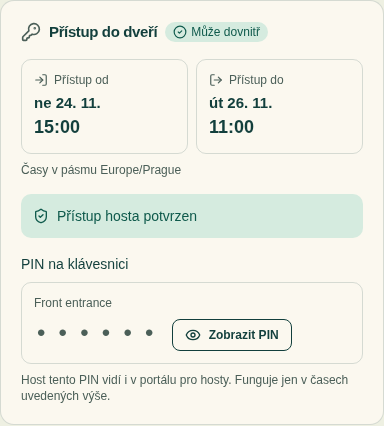
A device set up for remote unlocking only does not offer its own PIN; the guest uses the unlocking available in the portal. After a room change, a code change or a cancelled booking, check the new status and any request to confirm again.
When access needs your attention
The gateway is offline or a lock is missing
Check the power, Wi-Fi, the gateway's range and that the same TTLock account is used. Check the device in TTLock and refresh the status in Hostivio. The battery or gateway information is the last known status, not a physical test of the door. A PIN already stored on the lock can work without the gateway until it expires; remote unlocking and PIN changes, however, need a working connection.
The guest's PIN has not been prepared yet
Check that the device is turned on for guests, the room is right, access is confirmed, the arrival date is within the next 30 days and the gateway is available. Follow the status on the booking card. If something fails, use the checked backup way in and contact support; do not promise the guest a working PIN just because it is shown.
I am turning a lock off or disconnecting TTLock
Neither “Turn off for guests” (Vypnout pro hosty) nor “Disconnect TTLock” (Odpojit TTLock) guarantees that all PINs have been removed from the device. Check Old PINs and finish the removal. As long as PINs still need cleaning up, keep the required connection and the gateway available. Disconnecting is done by the owner.
Finish removing old PINs
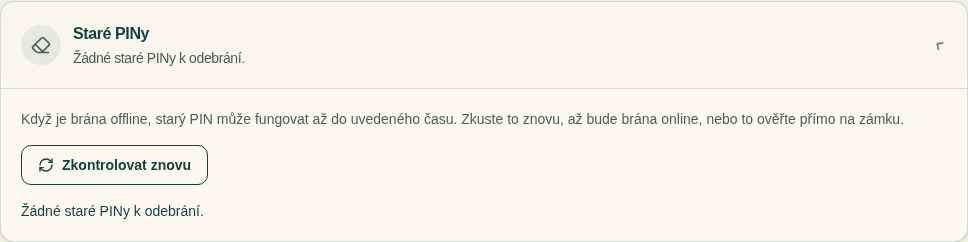
In the Old PINs section (Staré PINy), choose Check again (Zkontrolovat znovu). If the app offers Try removing again (Zkusit odebrat znovu), make sure the gateway is online and start the removal again. Use the Confirm removal button (Potvrdit odebrání) only after the owner has checked right on the device that the specific PIN has been removed. A deletion request alone is not enough.
If you run into problems, write to support in Hostivio: give the property, the device name, the step and the time of the problem. Attach a screenshot of the status without passwords, PINs or guests' personal data. Until the problem is solved, make sure the guest has a checked backup way in.
Dealing with arrivals and bookings too? Read about online check-in or the guide to connecting Booking.com.